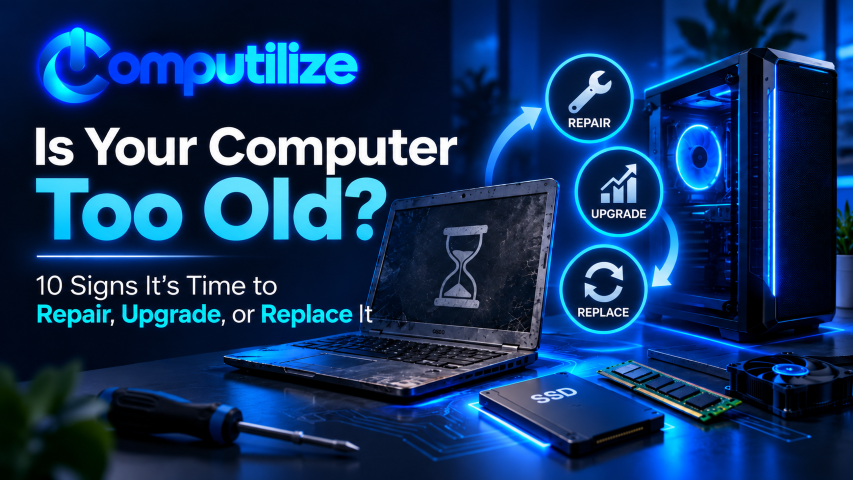
Trying to decide whether to repair, upgrade or replace your computer? A slow PC or laptop does not always mean you need a new one. Sometimes a simple repair, memory upgrade, storage upgrade, cleanup, or software fix can make an older computer feel fast again. Other times, continuing to repair an aging system costs more time and money than replacing it.
The challenge is knowing the difference. For small businesses, home-based businesses, and home users, the right decision depends on performance, age, security, upgrade potential, repair cost, and what you actually need the computer to do.
Quick Take: Repair, Upgrade, or Replace?
- Repair it when the problem is isolated, affordable, and the computer still meets your needs.
- Upgrade it when more memory, a faster SSD, a better graphics card, or another component can solve the bottleneck.
- Replace it when the computer is no longer secure, compatible, reliable, or powerful enough for the work you need to do.
Here are 10 signs that can help you decide what makes the most sense.
1. Your Computer Takes Forever to Start
If you turn on your computer and have time to make coffee before it is ready to use, something is probably slowing down the startup process.
- Too many startup applications
- An aging mechanical hard drive
- Low available storage
- Insufficient memory
- Background software or malware
- Older hardware that struggles with current software
This is often a good candidate for repair or an upgrade. Replacing an older hard drive with a solid-state drive can make a dramatic difference on systems that still use mechanical storage.
2. Programs Freeze, Crash, or Stop Responding
Occasional software problems happen on any computer. Frequent freezing, crashing, or long delays are different.
The cause may be software corruption, failing storage, overheating, insufficient RAM, driver problems, or hardware that simply cannot keep up with newer applications.
If the computer is otherwise modern, troubleshooting may solve the problem. If several components are aging at the same time, replacement may be the more practical option.
3. You Are Still Using an Unsupported Operating System
Security support matters. Microsoft ended standard support for Windows 10 on October 14, 2025, meaning regular technical assistance, feature updates, and security fixes are no longer provided for standard Windows 10 installations. Microsoft offers Extended Security Updates for eligible systems, but for many users the long-term answer is moving to supported hardware and Windows 11.
If your computer cannot meet the Windows 11 requirements, including TPM 2.0 and Secure Boot capability, that is an important sign to evaluate whether replacement makes more sense than continued investment in the existing system.
4. Your Hard Drive Is Almost Full
Computers need free storage space to operate efficiently. When the system drive is almost full, Windows updates, temporary files, applications, and virtual memory can all be affected.
Before replacing the computer, consider:
- Removing unnecessary files and applications
- Moving photos and videos to external or cloud storage
- Installing a larger SSD
- Cleaning temporary and cached files
- Reviewing whether an application is consuming excessive storage
If storage is the only major problem, an upgrade may be far less expensive than buying a new computer.
5. You Constantly Run Out of Memory
Modern web browsers, video meetings, cloud applications, security software, and productivity tools can use a surprising amount of RAM.
If the computer slows dramatically when you have several programs or browser tabs open, memory may be the bottleneck.
- 8GB: can still handle light everyday use, but may feel limiting with heavier multitasking.
- 16GB: is a comfortable target for many current home and small-business users.
- 32GB or more: can make sense for heavier content creation, development, virtual machines, large datasets, and demanding professional applications.
If the RAM is upgradeable, adding memory can extend the life of a computer significantly.
6. The Computer Runs Hot or the Fans Never Stop
Heat can reduce performance and shorten hardware life. A computer that constantly runs hot may have dust buildup, blocked airflow, failing fans, dried thermal material, or components working at their limits.
Cleaning and cooling repairs may solve the problem. However, if an older laptop is overheating while performing basic tasks, the processor and cooling design may simply be struggling with modern workloads.
7. The Battery Barely Lasts on Your Laptop
Laptop batteries wear out over time. Poor battery life by itself does not always justify replacing the entire laptop.
If the system is still fast, secure, and useful, a battery replacement can be worthwhile. But if the battery is failing along with a slow processor, limited memory, old storage, worn keyboard, damaged ports, or other problems, the combined repair cost may point toward replacement.
8. New Software or Devices No Longer Work Properly
Compatibility problems often reveal that a system is reaching the end of its useful life.
- New applications require a newer operating system.
- Drivers are no longer available.
- Modern printers, cameras, or peripherals have compatibility issues.
- Video conferencing software performs poorly.
- Newer security applications no longer support the system.
- Current creative or business software is too demanding for the hardware.
When compatibility problems begin affecting the work you need to do, replacing the computer often becomes more practical than trying to work around each limitation.
9. You Are Spending Too Much Time Waiting
Computer performance has a real cost. A system that wastes a few minutes several times a day can add up to hours of lost productivity over time.
This matters especially for small businesses. Waiting for files to open, invoices to process, browser tabs to load, or applications to respond can cost more than the computer itself when the lost time is multiplied across weeks and months.
If the computer regularly gets in the way of the work, it is no longer just a technology problem — it is a productivity problem.
10. The Cost of Repair Is Getting Too Close to the Cost of Replacement
One of the simplest ways to make the decision is to compare the repair cost with the value and remaining useful life of the computer.
Replacing one inexpensive component on an otherwise good computer can make sense. Replacing a battery, storage drive, keyboard, charging port, memory, and other aging parts on the same old system may not.
Ask these questions before approving a repair:
- How old is the computer?
- Will the repair solve the main problem?
- Are other components likely to fail soon?
- Can it run a currently supported operating system?
- Will it meet my needs for the next two or three years?
- How much would a replacement with better performance cost?
When Repairing Makes Sense
- The computer is still reasonably modern.
- The problem is limited to one component.
- The repair cost is relatively low.
- The system already meets your performance needs.
- The computer supports a current operating system.
- Your files, software, and setup would be inconvenient to move unnecessarily.
When Upgrading Makes Sense
- You still have a mechanical hard drive and can install an SSD.
- The system supports additional RAM.
- A desktop computer can accept a newer graphics card.
- You need more storage but the rest of the system performs well.
- The computer has a solid processor but one component is creating a bottleneck.
When Replacing Makes Sense
- The operating system is unsupported and the computer cannot upgrade.
- Multiple major components are failing.
- The computer is unreliable enough to risk losing productivity or data.
- Repair costs are approaching the value of a replacement.
- Your software or peripherals require newer hardware.
- You need substantially more performance than the existing platform can provide.
Do Not Forget Your Data Before Repairing or Replacing a Computer
Before making major hardware changes, make sure important files are backed up. A failing hard drive can go from slow to unreadable with very little warning.
- Documents and business files
- Photos and videos
- Email archives when applicable
- Browser bookmarks
- Passwords and account recovery information
- Accounting and business data
- Application license information
A replacement computer is much easier to set up when the old system has been properly backed up and the data transfer is planned before the original computer fails completely.
Frequently Asked Questions
How old is too old for a computer?
There is no single age that automatically makes a computer obsolete. A well-built desktop may remain useful much longer than an entry-level laptop. Performance, operating-system support, reliability, upgrade options, and your workload matter more than age alone.
Will adding an SSD make an old computer faster?
Often, yes. Replacing a mechanical hard drive with an SSD can dramatically improve startup time, application loading, and general responsiveness. It will not fix every performance problem, but it is one of the most noticeable upgrades for older systems that still use traditional hard drives.
Is 8GB of RAM enough in 2026?
It can be enough for light browsing, email, and basic productivity. Users who regularly multitask, use many browser tabs, attend video meetings, edit media, or run heavier applications will usually have a better experience with 16GB or more.
Should I keep using Windows 10?
Windows 10 reached end of standard support on October 14, 2025. Eligible users may have temporary Extended Security Update options, but computers should ultimately move to a supported operating system. If your hardware cannot support Windows 11, it is worth evaluating whether replacement is the better long-term choice.
Is it cheaper to repair or replace a laptop?
It depends on the repair. A battery, SSD, memory, or software repair can be cost-effective. Major motherboard repairs, multiple failing components, or expensive repairs on a very old laptop may make replacement more sensible.
Make the Decision Based on What the Computer Is Worth to You
The right answer is not always “buy a new computer.” A good repair or upgrade can extend the life of a system and save money. At the same time, keeping an unreliable or unsupported computer too long can cost more through lost productivity, downtime, security risk, and repeated repairs.
Computilize can help evaluate your computer, identify the real bottleneck, explain your options, and help you decide whether repair, upgrade, or replacement makes the most sense for the way you actually use technology. Explore our IT Solutions or Technology Consulting services to see how we can help.
Utilize the Power.